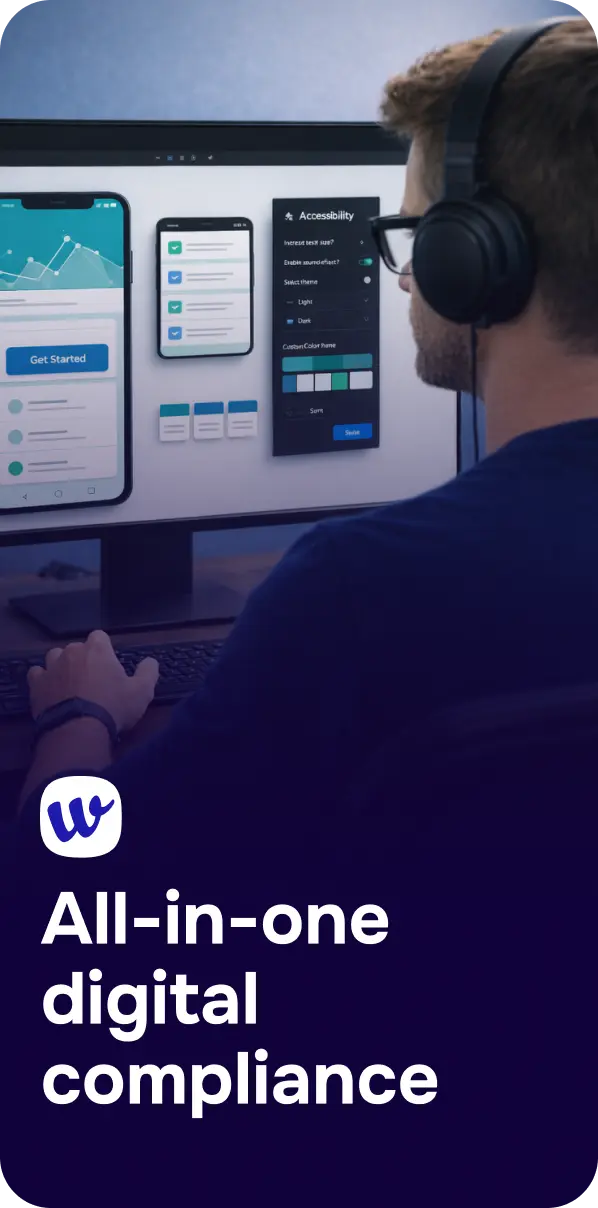
“Shift left” means moving quality and compliance work earlier in the product lifecycle—when it’s cheaper and easier to fix. Accessibility is a perfect fit for this approach because many of the most common WCAG issues start as design decisions: low contrast colors, unclear focus states, missing error guidance, inaccessible component patterns, and layouts that break at zoom or reflow.
Designers spend hours in Figma shaping experiences before a single line of code is written. That makes Figma the best place to run early accessibility checks and prevent avoidable defects from entering development. When accessibility is validated inside the design tool, teams reduce rework, ship faster, and create experiences that work for more people from day one.
Shifting accessibility left doesn’t mean designers must become compliance experts. It means adding lightweight checks and shared standards at the design stage so accessibility isn’t “discovered” during QA—or worse, after release.
In practical terms, shifting left includes:
This design-first approach aligns with how accessibility regulations and standards are typically assessed: against user outcomes defined by WCAG. If you need a refresher on the “why” behind compliance, Digital Accessibility and Regulations: A Practical Guide to WCAG Compliance is a helpful overview.
Changing a color token or spacing scale in a design system takes minutes. Changing colors across production CSS, updating components, retesting, and re-releasing takes far longer. The same is true for interaction patterns: if the design implies a complex custom control, engineering may implement it in a way that becomes difficult to make keyboard- and screen reader-friendly later.
While WCAG is technology-agnostic, the outcomes depend on decisions made early. Examples designers influence heavily include:
Ambiguous design specs lead to inconsistent implementations. When accessibility is captured in Figma—through annotations, component states, and defined patterns—developers can implement with fewer assumptions. That prevents “accessibility debt” from accumulating across sprints.

You don’t need a 200-item audit at design time. Focus on the checks that are easiest to validate visually and structurally inside Figma, and that most often cause downstream failures.

Figma checks are a starting point, not the finish line. Visual validation in design must connect to build-time and post-release monitoring to stay compliant as content and components change.
A mature workflow often looks like this:
If you want a concrete example of connecting design checks to live-site verification, From Design to Live Site: How ScanAndFox, Our Figma Plugin, and Chrome Extension Work Together breaks down how teams carry findings through each stage.
Contrast is important, but many failures come from missing labels, confusing focus order, inaccessible dialogs, and unclear error recovery. Use contrast checks as one input—not the only gate.
Custom dropdowns, date pickers, carousels, and mega menus often become accessibility hotspots. When possible, base designs on established patterns and ensure all states and behaviors are specified for keyboard and assistive technology users.
Figma designs don’t automatically convey semantics. Add notes for things like: required fields, error summary behavior, focus trap expectations in modals, and accessible names for icon-only buttons. These notes reduce interpretation and prevent regressions.

Shifting accessibility left is most effective when paired with ongoing verification. Corpowid (corpowid.ai) supports teams by automating accessibility audits and monitoring so issues introduced during development or content updates don’t slip through unnoticed. That means designers and developers can rely on a feedback loop that continues beyond Figma.
During implementation and QA, it’s also useful to spot-check specific pages quickly; Test Any Page on the Fly With the Corpowid Chrome Extension explains how teams can validate changes without waiting for a full release cycle. And for rapid, broad scanning across a site, Meet ScanAndFix: Scan Any Website for Accessibility Issues in Seconds outlines a fast way to surface common WCAG problems and prioritize fixes.
For teams specifically looking to catch issues before code is written, Catch Accessibility Problems Before You Code: Our Figma Plugin Explained dives deeper into a designer-friendly approach to early detection.
Running accessibility checks inside Figma is one of the highest-leverage changes a product team can make. It reduces rework, improves collaboration, and makes inclusive design a default—not a retrofit. When designers validate the foundations early and teams reinforce that work with testing and monitoring later, accessibility becomes a reliable part of delivery rather than a last-minute scramble.
Corpowid has been recognized by Gartner, a leading global research and advisory firm, for our innovation and performance in digital accessibility. These badges reflect our commitment to creating inclusive, AI-powered web experiences.





 TR
TR