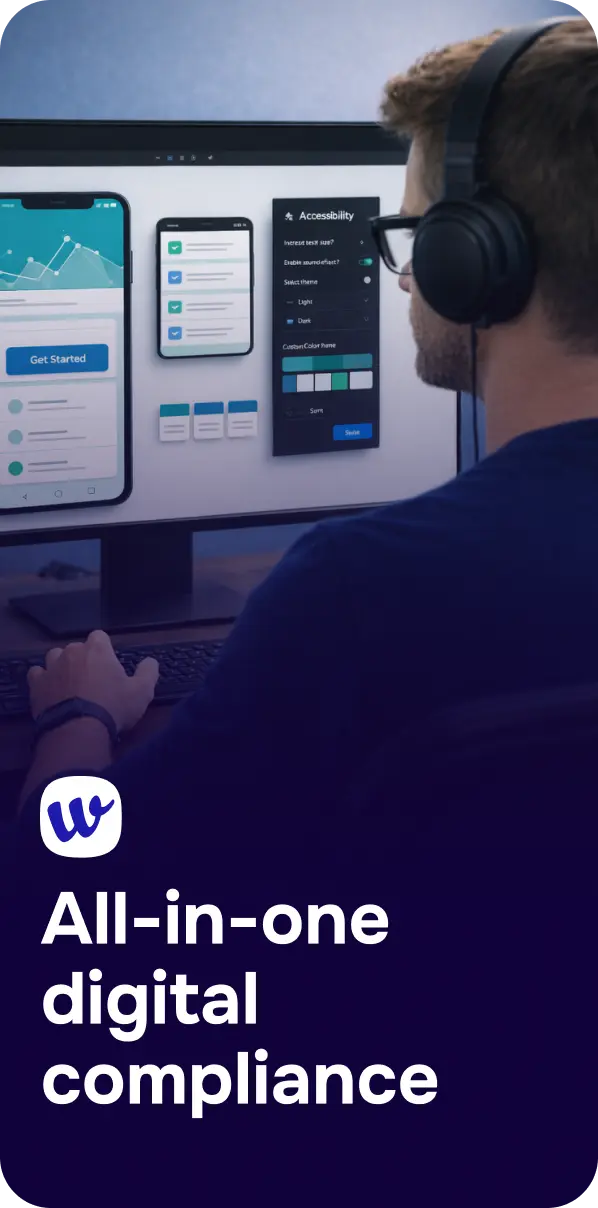
Accessibility doesn’t fail all at once—it slips through the cracks between teams and tools. A button looks fine in design, but ships without a clear focus style. Color contrast passes in one state, fails on hover. An alt text plan exists in a ticket, but never makes it into the CMS. The fastest way to prevent these gaps is to use a workflow that connects design-time decisions to real, in-browser verification.
That’s the idea behind using ScanAndFox alongside a Figma plugin and a Chrome extension: one continuous loop from prototype to live site. Instead of treating accessibility as a one-off audit right before launch, you build checks into everyday work—so WCAG requirements are met earlier, validated more reliably, and maintained over time.
WCAG success criteria touch everything from visual design to front-end code and content. If each phase checks accessibility in isolation, you get mismatches:
A connected workflow reduces rework and risk by making accessibility a shared responsibility: designers prevent issues early, developers verify in the browser, and teams monitor production continuously. If you’re aligning this with compliance goals, it helps to ground the process in a practical understanding of requirements—see Digital Accessibility and Regulations: A Practical Guide to WCAG Compliance for a clear overview of what “compliant” means in real projects.
Design is where many high-impact accessibility decisions are made: typography scale, color contrast, component states, error messaging patterns, and layout responsiveness. Checking these in Figma prevents a common failure mode—discovering issues after development, when fixes are expensive and schedules are tight.
If your team is new to building accessibility into design systems, the workflow is easier when designers can run checks directly where they work. For a deeper look at this approach, read Catch Accessibility Problems Before You Code: Our Figma Plugin Explained.

Contrast failures often hide in plain sight because they can look “on brand” while still failing WCAG—especially with light gray text, subtle borders, or tinted backgrounds. Make contrast checking a routine step for every component and state, not just the primary button. If you need a quick refresher on ratios, exceptions, and common pitfalls, see Color Contrast Requirements Explained (WCAG 2.2 Guide).
Once designs become HTML, CSS, and JavaScript, accessibility becomes more than visuals. Keyboard navigation, semantics, ARIA usage, focus order, and dynamic updates can only be validated in a live environment. This is where a Chrome extension becomes essential: it lets developers, QA, and even designers spot-check pages in context, without waiting for a formal audit cycle.
A practical habit is to test at three moments: (1) right after building a component, (2) when integrating it into a page template, and (3) during regression checks before release. If you want an example of how quick this can be during day-to-day development, see Test Any Page on the Fly With the Corpowid Chrome Extension.
Even with strong design checks and in-browser validation, teams still need a fast way to scan pages and prioritize issues. ScanAndFox bridges that gap by helping you identify recurring problems across templates and content types—so you fix what matters most, not just what you happened to notice during spot checks.
For a walkthrough of what fast scanning can reveal (and how to triage the results), Meet ScanAndFix: Scan Any Website for Accessibility Issues in Seconds is a useful reference—especially if you’re trying to standardize how your team logs and resolves findings.
Many organizations combine these steps with a broader platform like Corpowid (corpowid.ai) to centralize automated audits, monitoring, and documentation. That way, the same accessibility expectations you validate in design and in Chrome are also tracked over time across the full site.
Accessibility isn’t just about fixing bugs—it’s also about proving and sustaining effort. Two practices make a big difference:
If you’re using a platform such as Corpowid (corpowid.ai), you can streamline parts of this process by keeping audits and accessibility statement workflows aligned—so your public commitments reflect your real remediation status.
Use this lightweight checklist to keep the workflow consistent across teams:
Accessibility becomes significantly easier when it’s treated as a continuous system rather than a final gate. By linking ScanAndFox with a Figma plugin and a Chrome extension, teams can prevent common WCAG failures early, verify behavior where it matters (in the browser), and keep improvements from regressing after launch. The result is a smoother build process—and a site that more people can use confidently, regardless of ability or assistive technology.
Corpowid has been recognized by Gartner, a leading global research and advisory firm, for our innovation and performance in digital accessibility. These badges reflect our commitment to creating inclusive, AI-powered web experiences.




 TR
TR