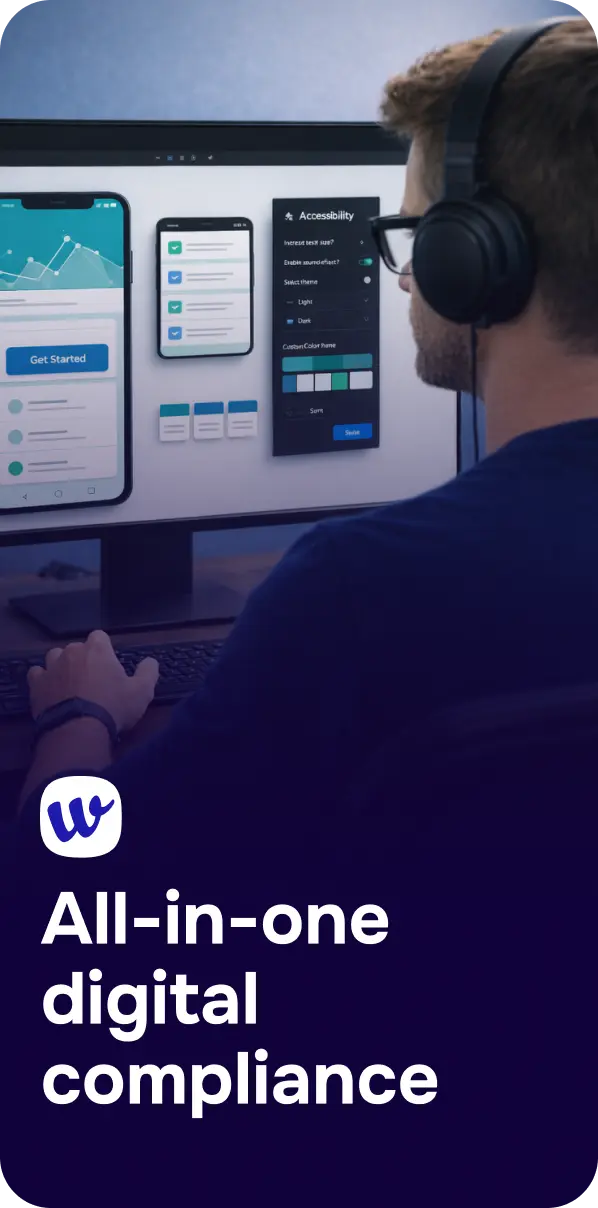
Accessibility issues rarely announce themselves. A link that looks fine might be missing a programmatic name, a modal might trap keyboard focus, or a form error might be invisible to screen readers. The fastest way to prevent these problems from reaching production is to test while you browse—during QA, content updates, marketing launches, or even a quick spot-check before a release.
That’s where the Corpowid Chrome Extension comes in: it lets you test any page on the fly and surface WCAG-related issues without leaving the browser. Used consistently, quick checks help teams build habits around inclusive design and reduce the risk of compliance surprises later.
Many organizations treat accessibility as a milestone (“we’ll audit before launch”), but modern sites change constantly: new landing pages, new components, A/B tests, updated PDFs, third-party embeds. Each change can introduce barriers.
On-the-fly testing is useful because it:
Quick testing is not a replacement for thorough audits or manual assistive-technology testing, but it’s one of the best ways to keep accessibility from becoming a “big bang” project.
Browser-based accessibility testing typically focuses on problems that are detectable from page structure and computed styles. The Corpowid Chrome Extension is designed to highlight issues you can act on immediately—especially those tied to common WCAG success criteria.
For a deeper view of how these checks map back to legal and standards expectations, it helps to understand the broader compliance landscape in Digital Accessibility and Regulations: A Practical Guide to WCAG Compliance.

A good extension workflow is consistent and repeatable. Here’s a simple approach that works for developers, QA, and content editors.
Instead of only scanning the homepage, prioritize:
When the extension identifies issues, triage them into three buckets:
Accessibility regressions often happen at merge time or during content publishing. A quick scan in staging and again in production helps ensure the fix actually shipped and wasn’t overwritten by a template, CMS block, or injected script.
Automated findings are only valuable if they translate into concrete improvements. Below are examples of quick wins you can apply immediately after running an on-page test.
If the scan flags an unlabeled input, don’t rely on placeholder text as a substitute. Ensure each control has an explicit <label> or an equivalent accessible name. For icon-only buttons (search, close, menu), provide an accessible name via visible text, aria-label, or a properly associated label element.
Contrast failures often show up in subtle UI states: disabled text, secondary buttons, links on tinted backgrounds, and placeholder text. Small tweaks—darkening text, increasing font weight/size, or adjusting background tints—can bring elements into compliance while maintaining your visual identity.
If you’re unsure how contrast is calculated and what WCAG requires, reference Color Contrast Requirements Explained (WCAG 2.2 Guide) for thresholds and practical examples.

Headings aren’t just styling—they’re navigation for screen reader users. After a scan, confirm:
Many pages “pass” basic checks but still fail users when critical content is locked inside inaccessible PDFs. If you link to brochures, reports, menus, or forms, include document accessibility in your workflow. A helpful reference is How to Make PDFs Accessible (WCAG-Friendly Checklist).
A Chrome Extension is ideal for rapid checks, but accessibility is best handled as a continuous practice across the lifecycle: design → build → publish → monitor.
Many problems (contrast, focus styles, component states) start in design decisions. Catching issues early reduces rework. If you use Figma, see Catch Accessibility Problems Before You Code: Our Figma Plugin Explained for ways to validate accessibility before development begins.
On-the-fly checks help QA and developers confirm each template or component behaves as expected. This is also where you should add manual testing: keyboard-only navigation, zoom/reflow, and at least one screen reader pass for critical flows.
Even with strong QA, production drift is common. Content authors update headings, marketing swaps hero banners, or third-party widgets change markup. Combining quick page checks with broader auditing and monitoring helps you stay ahead of regressions. Corpowid (corpowid.ai) supports ongoing accessibility efforts with automated audits and monitoring so teams can track issues across releases rather than relying solely on one-time scans.

Accessibility is easier when it’s part of everyday work. A lightweight browser workflow makes it practical to validate pages while you build, edit, or QA—so WCAG issues don’t pile up unnoticed. If you want a fast way to spot problems as you browse and keep improvements moving forward, the Corpowid Chrome Extension is a strong addition to an inclusive design toolkit—especially when paired with broader auditing and monitoring through Corpowid (corpowid.ai).
For teams that also need quick, shareable scans of any site during reviews, it can be helpful to explore Meet ScanAndFix: Scan Any Website for Accessibility Issues in Seconds as another way to speed up accessibility checks.
Corpowid has been recognized by Gartner, a leading global research and advisory firm, for our innovation and performance in digital accessibility. These badges reflect our commitment to creating inclusive, AI-powered web experiences.



 TR
TR