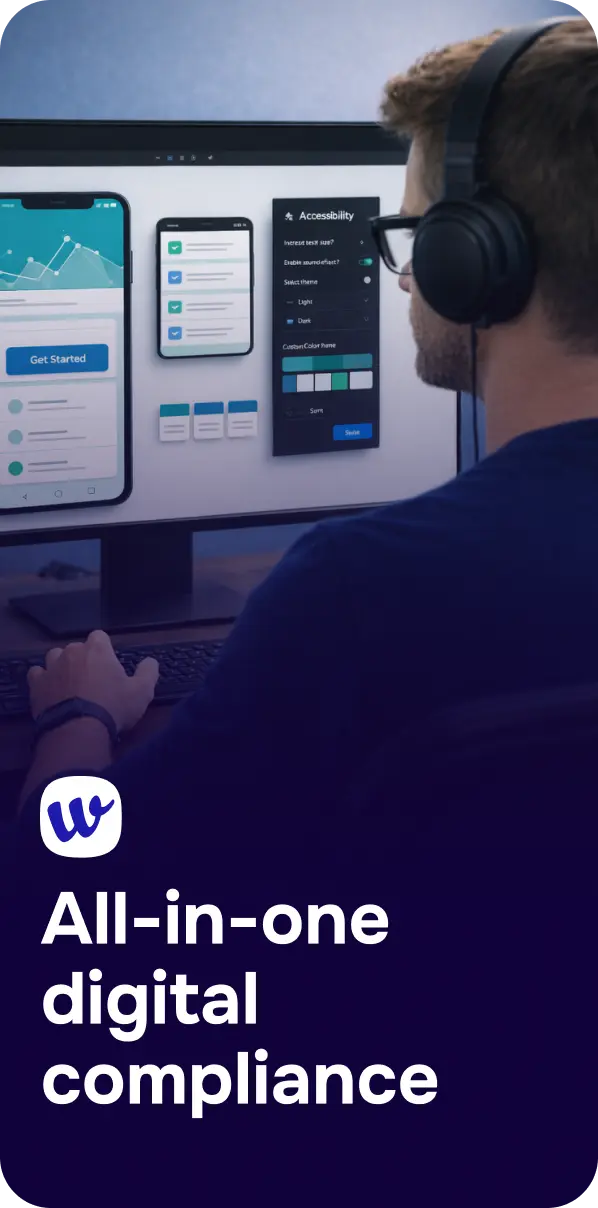
Accessibility work often starts with a familiar problem: you know your website should be usable by everyone, but you don’t know where the issues are—or which ones matter most. That’s where ScanAndFix comes in. In seconds, it can scan a page, surface common accessibility barriers, and give your team a practical starting point for improvement.
This article explains what ScanAndFix is, what a “scan in seconds” can realistically catch, how results map to WCAG success criteria, and how to turn quick findings into meaningful, inclusive design outcomes.
ScanAndFix is a fast, automated accessibility scanner designed to identify common barriers on web pages—things like missing alternative text, low color contrast, form label problems, and incorrect heading structure. Think of it as a first-pass spotlight: it quickly highlights patterns that often block people who use screen readers, keyboard navigation, magnification, voice input, or other assistive technologies.
A “scan any website” promise is especially valuable for teams working across multiple domains, sub-sites, or landing pages—where manually checking everything is unrealistic. Instead, ScanAndFix helps you triage: find what’s broken most often, on which templates, and where to start fixing.
Speed isn’t about skipping quality—it’s about reducing friction so accessibility becomes routine. Quick scanning is most useful at three moments:
For organizations aligning with legal and regulatory expectations, automated scanning also supports governance and documentation. If you’re building a compliance plan, see Digital Accessibility and Regulations: A Practical Guide to WCAG Compliance for how audits, remediation, and monitoring work together.
Automated scanners can’t detect every issue, but they’re strong at catching measurable, code-detectable failures. ScanAndFix-style checks usually align to WCAG’s foundational principles—Perceivable, Operable, Understandable, and Robust (POUR)—and frequently map to these areas:
Low contrast is one of the most common issues on modern websites, especially with light gray text, thin fonts, and subtle UI borders. Scans can flag text contrast ratios and sometimes UI component contrast issues. If you want a deeper explanation of thresholds and edge cases, read Color Contrast Requirements Explained (WCAG 2.2 Guide).
Scanners can identify images without alt attributes and sometimes detect suspicious patterns (like “image123.jpg”). This is crucial for screen reader users, but it also improves overall content quality and SEO when done thoughtfully.
ScanAndFix can often detect inputs missing associated labels, placeholders used as labels, and ARIA misuses. These issues directly affect people navigating via screen reader or voice control and can also increase form abandonment for everyone.
Heading levels and page landmarks help users scan and navigate quickly—especially screen reader users who jump between headings. Automated checks can flag skipped heading levels or missing page titles that reduce clarity.
Some keyboard problems can be detected automatically (like focus outlines being removed), but many require interaction testing. Scanning is still valuable for early detection and prioritization.
Automated tools are good at catching broken ARIA attributes, invalid roles, and missing required properties. This helps ensure your interface is “robust” across assistive technologies.
Automated scanning is powerful, but it’s not a complete accessibility audit. Some critical barriers can only be evaluated with manual checks and real interaction:
This is why the best approach is a layered workflow: quick scan for breadth, manual testing for depth, and continuous monitoring to prevent regressions.

Scanning is only useful if it leads to improvements. A practical way to turn findings into a fix plan is to prioritize by impact, frequency, and effort:
In practice, high-impact template issues—like missing form labels, broken navigation landmarks, or contrast failures—often deliver the fastest improvement for the most users.
Accessibility isn’t a one-time project; sites change constantly. A sustainable approach includes ongoing checks so issues don’t reappear. Platforms like Corpowid (corpowid.ai) help teams automate accessibility audits, monitor changes over time, and maintain an accessibility statement workflow—so improvements stick as new content and features ship.
Also, accessibility work shouldn’t start at the end. If your team designs in Figma, it’s faster to catch problems before code. See Catch Accessibility Problems Before You Code: Our Figma Plugin Explained to integrate accessibility thinking earlier in the process.
Many organizations publish policies, reports, menus, invoices, or application forms as PDFs. A web scan won’t detect whether embedded documents are accessible. If PDFs are part of your user journey, use a dedicated checklist and remediation process—start with How to Make PDFs Accessible (WCAG-Friendly Checklist).
ScanAndFix can quickly highlight WCAG failures, but inclusive design is the broader goal: making experiences work for people with different abilities, contexts, devices, and preferences. That includes readable typography, clear content structure, predictable interactions, accessible error recovery, and alternatives for sensory-heavy content.
If your team is new to the mindset, Inclusive Design Principles for Beginners: A Practical Guide to Accessible Digital Experiences is a strong next step—especially for product and design stakeholders who influence accessibility long before development.

If you want to move from “we should do accessibility” to “we’re actively improving,” try this lightweight workflow:
ScanAndFix makes accessibility more approachable by turning a big, uncertain challenge into concrete, visible findings—fast. Used well, instant scanning becomes the entry point to a mature accessibility practice: prioritize what matters, validate fixes, and keep improvements from slipping over time. Combine speed with thoughtful manual testing and inclusive design principles, and you’ll build a website that works better for everyone.
Corpowid has been recognized by Gartner, a leading global research and advisory firm, for our innovation and performance in digital accessibility. These badges reflect our commitment to creating inclusive, AI-powered web experiences.






 TR
TR