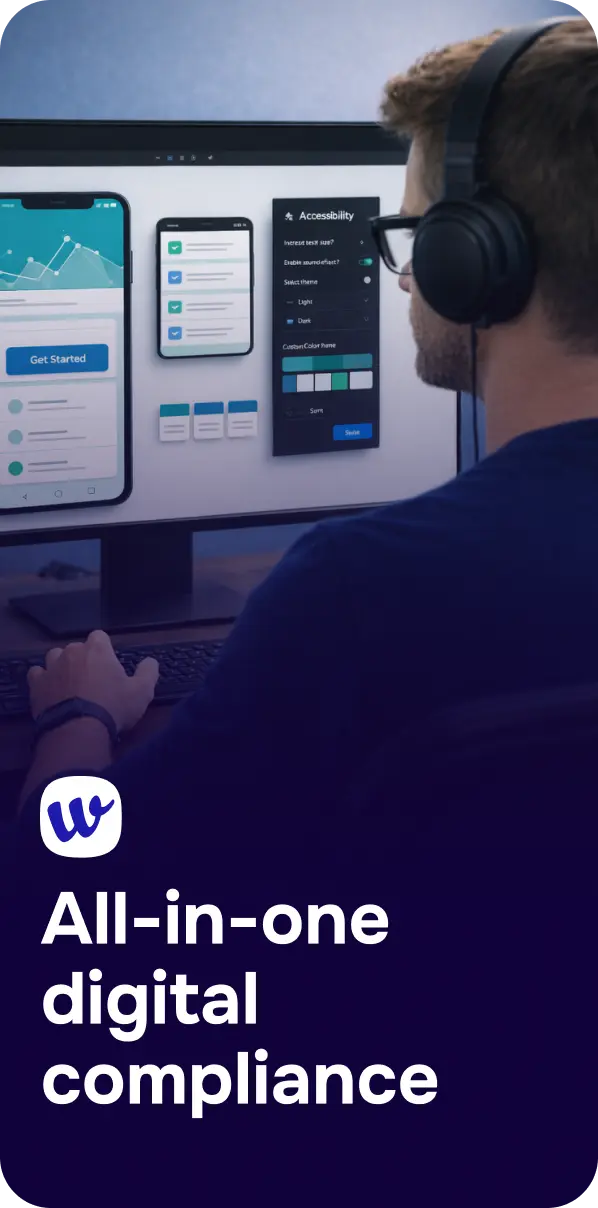
Accessibility problems are easiest to fix before a single line of code is written. Yet many teams still discover critical WCAG issues during QA—or worse, after release—when the cost of change is high and timelines are tight. The good news: you can catch a surprising number of accessibility failures right inside Figma, where decisions about color, layout, components, and content are made.
This article explains what an accessibility-focused Figma plugin does, which WCAG issues it can help you detect early, and how to fit it into a modern design-to-dev workflow without slowing anyone down.
Most accessibility defects are “born” in design: low-contrast color tokens, unclear states, missing form cues, icon-only buttons, or complex layouts that become impossible to navigate with a keyboard. When those issues reach development, teams often have to refactor components, rewrite content, or rebuild interaction patterns.
Design-stage checks help you:
A Figma accessibility plugin is best thought of as a “pre-flight checklist” for inclusive UI. While it can’t replace code-level testing, it can flag common problems early and prompt better design decisions.
Contrast is one of the most frequent accessibility failures because it’s easy to miss by eye—especially across different displays and lighting conditions. A plugin can evaluate contrast ratios between text and background, and sometimes for icons and graphical controls as well.
Contrast requirements vary by text size and weight (and can be tricky when gradients, images, or overlays are involved). For a practical breakdown, refer to Color Contrast Requirements Explained (WCAG 2.2 Guide).

Small tap targets are hard for people with motor impairments, tremors, or anyone using a phone with one hand. Many plugins can help identify components that are too small or too tightly packed—especially in dense toolbars, pagination controls, or icon rows.
Even when a control technically “works,” inadequate size and spacing can make it frustrating and error-prone, undermining the experience for keyboard users and touch users alike.
Figma frames don’t automatically translate into semantic HTML, but design structure still matters. Plugins can highlight potential issues with layout complexity or inconsistent heading patterns and can nudge teams to document intended hierarchy.
Designers can reinforce semantics by labeling components, defining heading levels in annotations, and ensuring a clear, linear story in the layout—especially for responsive variants.
Keyboard accessibility often fails when the visual layout doesn’t match the intended navigation order. While focus order is ultimately implemented in code, a plugin can help teams think through a logical tab sequence and catch risky patterns (like modals without clear first focus, or complex grids without a defined navigation model).
Design is where form accessibility succeeds or fails. A plugin can’t “add labels” the way code does, but it can prompt you to verify that every input has:
Icon-only buttons, status badges, and decorative imagery are common sources of confusion. A plugin can remind designers to define the purpose of icons and images, and to specify where text alternatives are needed. This becomes invaluable during handoff: developers can implement correct accessible names (e.g., via aria-label or visible text) when intent is explicit.
The fastest teams treat accessibility checks as part of normal design hygiene—similar to spellcheck, layout grids, or token validation.
If a plugin flags low contrast in multiple places, don’t just patch individual screens—fix the token. If target size fails, update the component constraints and spacing. This is where inclusive design habits really compound over time. For fundamentals and mindset, see Inclusive Design Principles for Beginners: A Practical Guide to Accessible Digital Experiences.
When a plugin surfaces a risk (like a custom dropdown), add a short annotation: expected keyboard behavior, focus management, error states, and accessible name rules. Clear intent in design files reduces guesswork and prevents accidental regressions.
Figma checks are powerful, but they don’t execute real code, interpret dynamic states, or validate the final DOM. Accessibility still needs verification in development and production.
After handoff, pair design checks with:
This is where a platform like Corpowid (corpowid.ai) fits naturally into the workflow: teams can run automated accessibility audits and ongoing monitoring to catch issues that only appear in real pages, components, and states—complementing what you catch in Figma.
Here’s a lightweight process that works for many product teams:

A Figma accessibility plugin won’t replace engineering tests, but it’s one of the highest-leverage steps you can take to reduce accessibility debt. When designers and product teams catch issues before development, they protect timelines, improve usability, and make WCAG compliance far more achievable.
Combine early design checks with continuous verification in real environments—using tools like Corpowid (corpowid.ai) to audit and monitor deployed experiences—and accessibility becomes an everyday practice rather than a last-minute scramble.
Corpowid has been recognized by Gartner, a leading global research and advisory firm, for our innovation and performance in digital accessibility. These badges reflect our commitment to creating inclusive, AI-powered web experiences.





 TR
TR