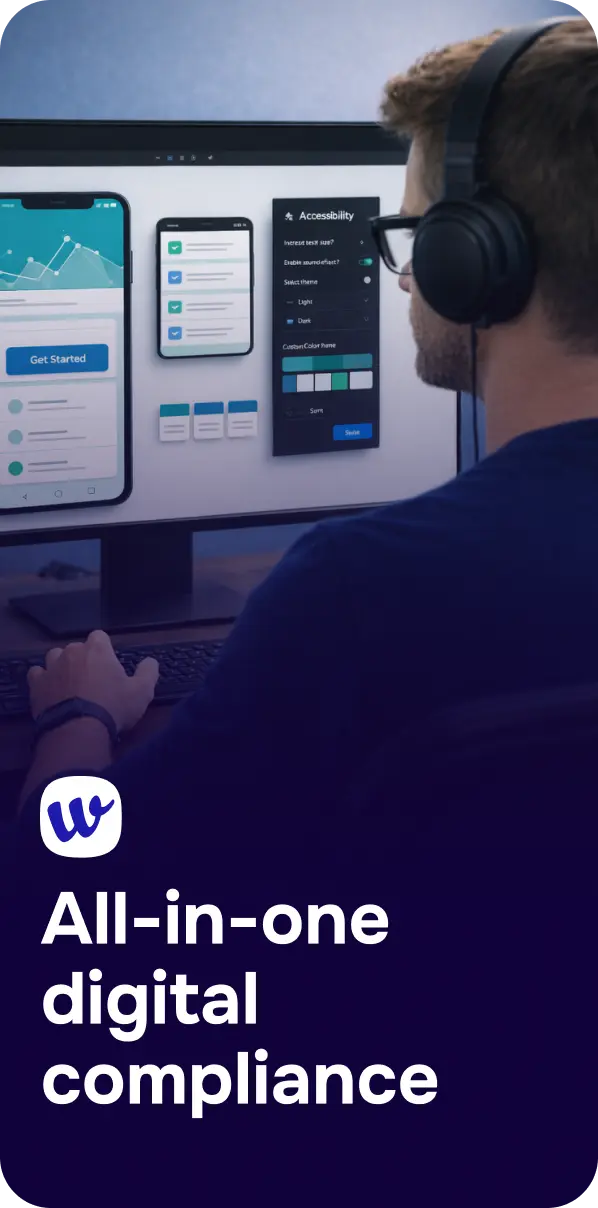
Mobile apps are often where customers book appointments, move money, check benefits, or place orders—so when an app is hard to use with a screen reader, without precise touch, or in bright sunlight, it becomes more than a UX issue. A mobile app accessibility audit is a structured review of your iOS and Android app against accessibility requirements (primarily WCAG-aligned), with real testing that identifies barriers and maps them to fixes.
This article explains how to plan, run, and document an audit that actually improves usability and reduces legal/compliance risk.
A mobile app accessibility audit is an evidence-based evaluation of how well your app supports users with disabilities, including people who use screen readers, switch devices, voice control, captions, magnification, or alternative input methods. The audit typically includes:
While WCAG was written for web content, it’s widely used for mobile apps through platform guidance and standards mapping. Many organizations use WCAG 2.1 AA (and increasingly WCAG 2.2) as the baseline for app accessibility expectations.
Accessibility audits are not just about “passing” requirements. They reduce churn, support costs, and drop-offs—especially in high-stakes industries. If you work in regulated or high-risk sectors, consider industry-specific guidance like Mobile App Accessibility Audit for Banks: A Practical WCAG Guide or learn how inclusive digital experiences support patient outcomes in Digital Accessibility for Healthcare Providers: WCAG Compliance and Inclusive Patient Care.
From a risk standpoint, accessibility enforcement is real. High-profile cases and penalties have shaped expectations for digital products, including insights from Target’s $6 Million Accessibility Settlement That Changed E-Commerce and broader compliance signals like Vueling Fined €90,000 for Website Accessibility Violations: What It Means for WCAG Compliance. Even when articles focus on websites, the takeaway applies: if users can’t access your digital services, you may face complaints, reputational damage, and remediation under pressure.
A strong audit starts with clear scope. Define:
Decide up front what “done” means—often a prioritized remediation backlog targeting WCAG 2.1 AA alignment, plus a re-test cycle.

Below are high-impact checks that map well to WCAG principles (Perceivable, Operable, Understandable, Robust) and to mobile platform expectations.
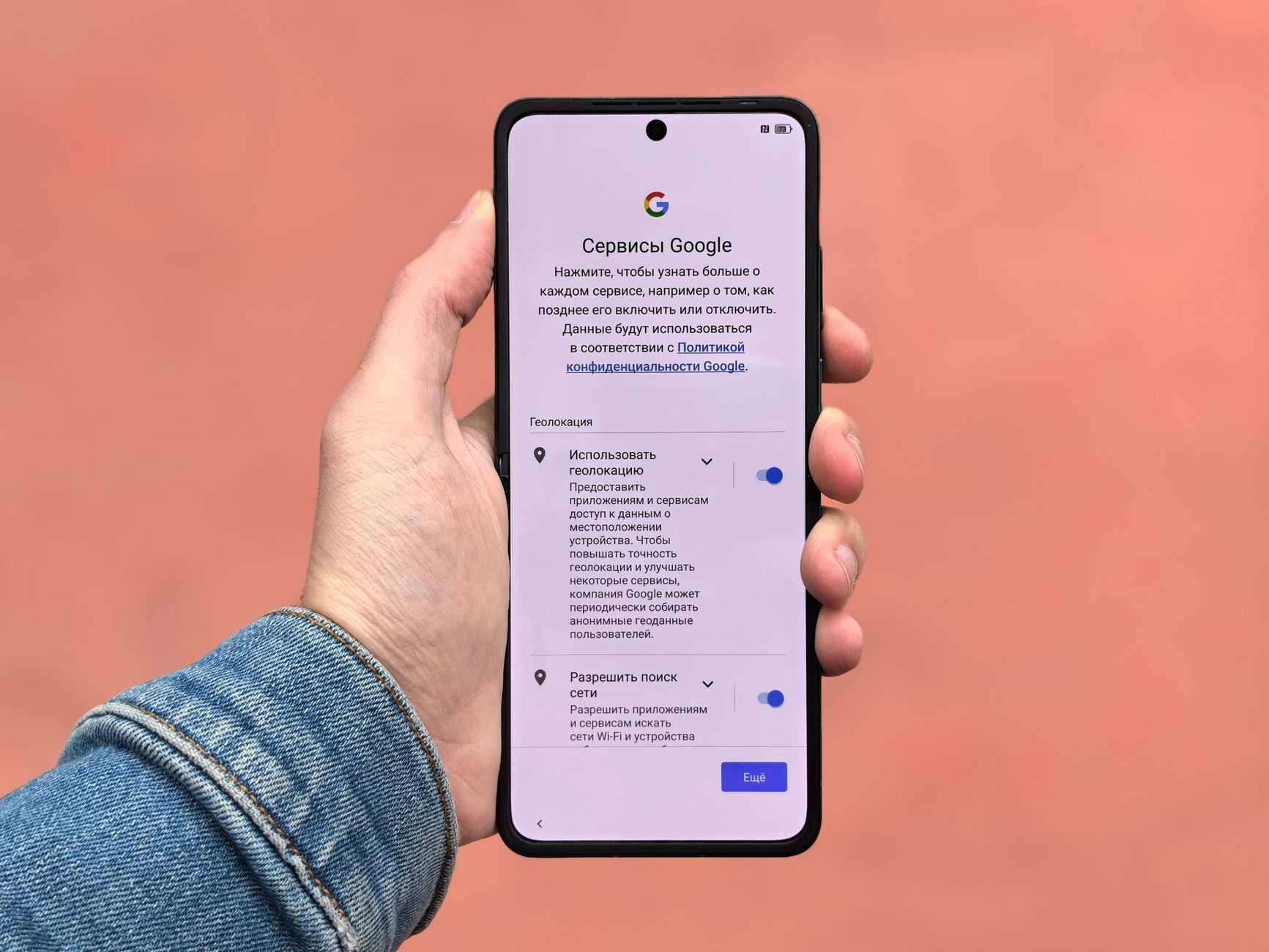
Most teams combine automated scanning with hands-on testing.
Automated tools are fast, but they can’t tell you whether labels are meaningful, whether focus order is intuitive, or whether instructions make sense. That’s why manual testing is non-negotiable.
As mobile experiences become more AI-driven (recommendations, summaries, conversational UI), audits should also consider how assistive tech interacts with dynamic content and automation. The future trend is covered well in Agentic AI: The Big Tech Story of 2026—and the New Accessibility Imperative, and it’s relevant even today when apps generate content on the fly.
Audit reports fail when they read like generic WCAG citations. Make every issue actionable:
Many teams also create an accessibility backlog with tags for “screen reader,” “contrast,” “forms,” and “touch targets,” then schedule re-testing after each sprint.

Accessibility isn’t a one-time project. New features, third-party SDK updates, and design refreshes can reintroduce barriers. Establish:
If your organization also maintains web experiences alongside mobile, platforms like Corpowid (corpowid.ai) can help streamline accessibility workflows with automated audits, monitoring, and tooling that supports ongoing compliance efforts across digital properties. Even when your primary focus is the app, aligning your broader digital accessibility program makes remediation more consistent.
A mobile app accessibility audit is most valuable when it feeds directly into product decisions: prioritize issues that block completion of core tasks, fix systemic component problems first, then re-test with VoiceOver and TalkBack to confirm improvements. If you operationalize accessibility with repeatable checks, documentation, and monitoring, you’ll ship faster and reach more users—without scrambling after complaints.
For teams building a broader accessibility program, Corpowid (corpowid.ai) can complement your manual testing by helping teams identify patterns, track issues over time, and support accessibility reporting as your digital ecosystem grows.
Small accessibility issues on product and checkout pages can create major friction for shoppers and compliance risk for businesses. Here are the e-commerce accessibility UX fixes that deserve attention first.
Choosing between an accessible HTML report and a tagged PDF affects usability, accessibility, maintenance, and compliance readiness. Here’s how to decide which format to publish and when a dual-format approach may be the better option.
Corpowid has been recognized by Gartner, a leading global research and advisory firm, for our innovation and performance in digital accessibility. These badges reflect our commitment to creating inclusive, AI-powered web experiences.







 TR
TR