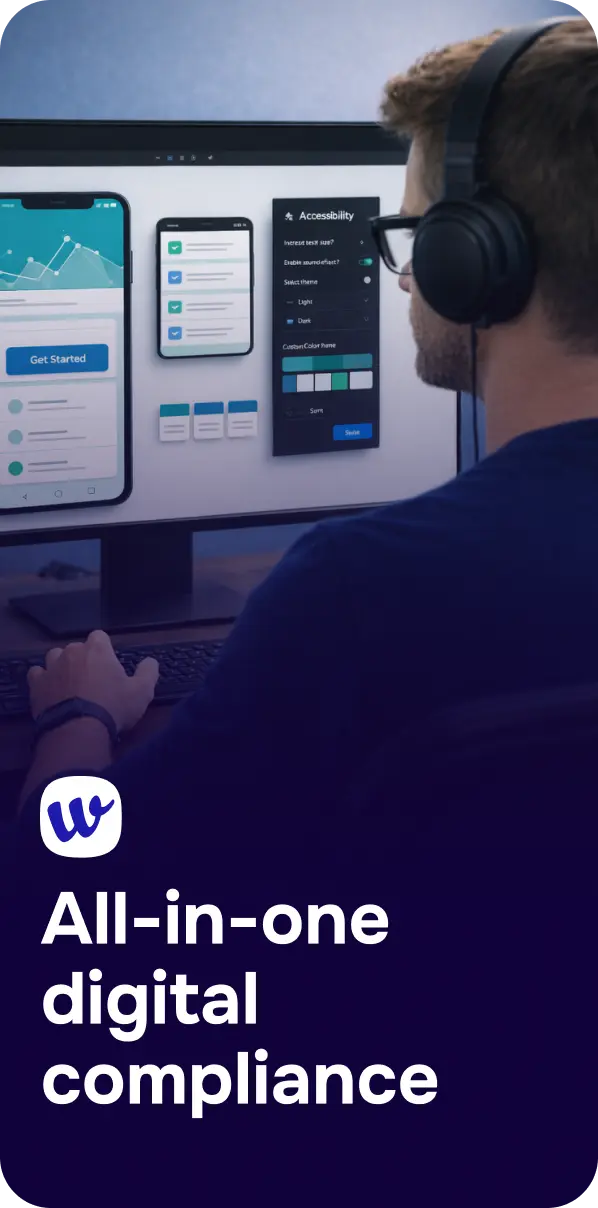
Searching for a free accessibility widget often comes from a good place: you want to remove barriers quickly, help more people use your site, and reduce legal risk. Many widgets (sometimes called overlays) add a small interface that lets visitors increase text size, adjust contrast, pause animations, or highlight links.
Those controls can be helpful for some users. But it’s important to understand what an accessibility widget can—and can’t—do under WCAG (Web Content Accessibility Guidelines). A widget is not the same thing as building accessible code, content, and design. If you’re aiming for real accessibility and compliance, you’ll need to pair any widget with testing, remediation, and ongoing monitoring.
A free accessibility widget is typically a snippet of JavaScript you add to your website. It displays a button or icon that opens a panel of options, such as:
Some tools go further and claim to “automatically make your site WCAG compliant” by applying scripts that attempt to modify page behavior on the fly. That promise is where many misunderstandings begin.
User-controlled settings can reduce friction for certain visitors—particularly those who benefit from larger text, more spacing, or higher contrast. When a widget is implemented carefully, it may improve comfort and readability without forcing a one-size-fits-all design.
If your site has older templates, a widget can act as a temporary layer of help while you fix the underlying issues. Think of it as “supportive,” not “corrective.” It can buy time, but it shouldn’t become the plan.
Seeing accessibility controls on the site can prompt internal conversations about inclusive design. That cultural shift is valuable—especially when it leads to updates in design systems, content workflows, and QA.

WCAG conformance is based on the accessibility of the actual experience—your HTML structure, ARIA usage, keyboard interaction patterns, form labels, error handling, media alternatives, and content clarity. A widget can’t reliably “patch” many of the issues that matter most.
If your page has missing form labels, incorrect heading hierarchy, broken focus order, or inaccessible custom components, the widget doesn’t change the underlying semantics. Screen readers and keyboard users depend on the structure of the page, not only on visual adjustments.
Keyboard support is fundamental to WCAG. If a menu can’t be opened with the keyboard, or focus gets trapped in a modal, a widget panel doesn’t resolve that. In some cases, overlays can even interfere with keyboard navigation by injecting elements that alter focus behavior.
Meaningful alt text depends on context and intent. Automated approaches can guess, but they can’t consistently describe what matters (and what’s decorative). WCAG requires text alternatives that convey equivalent information—not generic labels.
One of the biggest compliance misunderstandings is assuming accessibility is satisfied if users can toggle a widget. Many accessibility needs must be met by default. For example, a screen reader user shouldn’t need to discover and activate a tool to make forms usable.
Organizations have faced significant consequences when sites weren’t accessible—even when they attempted partial fixes. The well-known case described in Target’s $6 Million Accessibility Settlement That Changed E-Commerce highlights why treating accessibility as a “quick add-on” can be risky.

If you choose to use a widget, treat it as a supplemental user preference tool—not a compliance strategy. Here are practical guardrails:
To move toward genuine WCAG conformance, you need a repeatable process. Most organizations find success with a combination of automated scanning, manual testing, remediation in design/dev, and ongoing monitoring.
Automated scans catch many issues quickly (missing alt attributes, color contrast failures, empty buttons, ARIA misuse patterns). Manual testing covers critical gaps: keyboard flows, screen reader output, meaningful labels, error messaging, and complex components.
Platforms like Corpowid (corpowid.ai) can help teams identify issues through automated accessibility audits and monitoring, then track fixes over time—useful if you’re trying to move beyond “best effort” toward measurable improvement.
Prioritize issues that block key journeys: login, booking, checkout, contact forms, and navigation. Common high-impact fixes include:
An accessibility statement sets expectations, documents your target standard (often WCAG 2.1 AA or WCAG 2.2 AA), and provides a way for users to report barriers. It should reflect reality: what’s been tested, known limitations, and timelines for improvements. Tools within Corpowid can streamline creating and maintaining an accessibility statement as your site evolves.
Accessibility is especially critical in industries where people depend on digital services for essential needs. For example, healthcare websites must support inclusive patient access—see Digital Accessibility for Healthcare Providers: WCAG Compliance and Inclusive Patient Care for practical implications.
Accessibility widgets are usually designed for websites. If your user journey includes a mobile app, you’ll need a separate approach: native components, platform accessibility APIs, and WCAG-informed testing adapted for iOS/Android. Use a checklist like Mobile App Accessibility Audit: A Practical WCAG-Based Checklist to evaluate common barriers, and if you’re in financial services, Mobile App Accessibility Audit for Banks: A Practical WCAG Guide provides industry-specific considerations.
Digital experiences are changing fast—AI assistants, personalized interfaces, and autonomous workflows introduce new accessibility considerations. A widget can’t account for shifting interaction models or complex dynamic content without robust engineering and testing practices. For a forward-looking view, Agentic AI: The Big Tech Story of 2026—and the New Accessibility Imperative explores why accessibility needs to be built into modern product decisions, not bolted on later.
A free accessibility widget can be a useful supplement—offering comfort settings and quick usability improvements for some visitors. But it won’t make an inaccessible site WCAG-compliant, and it shouldn’t be treated as a shield against legal or reputational risk.
If you want real progress, focus on accessible design and code, validate with audits and user-centered testing, and monitor regressions as content changes. When paired with a structured program and tools that support auditing and ongoing monitoring, you’ll deliver an experience that works for more people—without requiring them to “turn accessibility on.”
Small accessibility issues on product and checkout pages can create major friction for shoppers and compliance risk for businesses. Here are the e-commerce accessibility UX fixes that deserve attention first.
Choosing between an accessible HTML report and a tagged PDF affects usability, accessibility, maintenance, and compliance readiness. Here’s how to decide which format to publish and when a dual-format approach may be the better option.
Corpowid has been recognized by Gartner, a leading global research and advisory firm, for our innovation and performance in digital accessibility. These badges reflect our commitment to creating inclusive, AI-powered web experiences.







 TR
TR