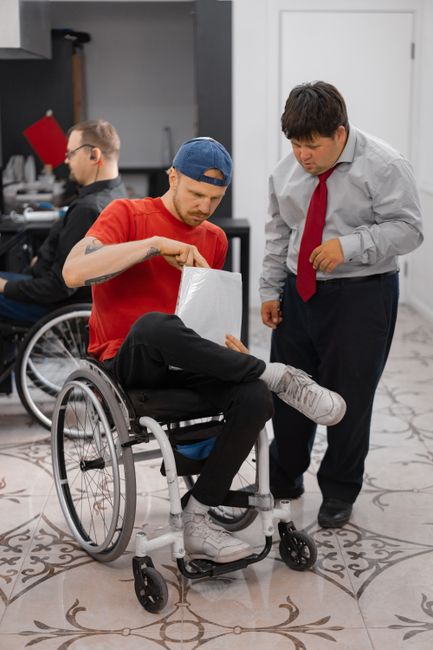
Inclusive design is the practice of creating digital experiences that work for as many people as possible, across ability, language, device, environment, and context. For beginners, it can feel like a big topic—especially when you hear terms like “WCAG,” “ARIA,” or “compliance.” The good news: you don’t need to be an accessibility expert to start making meaningful improvements. Inclusive design begins with a mindset and a handful of reliable, repeatable practices.
This guide breaks inclusive design into practical principles you can apply to websites, apps, and digital content—while staying aligned with accessibility standards like WCAG. If you’re also trying to understand the “why” behind the guidelines, you may find What Is WCAG 2.2 and Why It Matters helpful for framing the standard in real-world terms.
Inclusive design aims to reduce exclusion. It recognizes that disability isn’t just a personal condition—it often emerges from mismatches between a person’s needs and the way a product is designed. For example, low contrast text can exclude people with low vision, but it can also exclude someone reading on a phone in bright sunlight.
Inclusive design is closely related to digital accessibility, but it isn’t limited to disability alone. It considers multiple dimensions such as temporary impairments (a broken arm), situational constraints (holding a baby), and technology constraints (older devices or slow connections).
Inclusive design supports compliance because WCAG requirements overlap heavily with good UX practices: clear structure, predictable navigation, readable text, and robust interactions. But it also matters beyond checklists. Accessible experiences build trust, reduce support costs, and improve conversion—because more people can successfully complete tasks.
There’s also a growing regulatory landscape around the world. If you’re responsible for risk management or procurement, the bigger picture is covered in Digital accessibility in the grip of global regulations, which highlights why accessibility is increasingly treated as a requirement rather than a nice-to-have.
Below are beginner-friendly principles that map naturally to WCAG outcomes. You can apply them whether you’re writing content, designing UI, or building components.
Personas can help, but they often miss disability-related needs unless you explicitly include them. Consider adding “access needs” to your user stories. Examples:
Structure is the backbone of accessibility. Use a logical heading hierarchy (H1, then H2s, then H3s), consistent navigation placement, and descriptive page titles. For interactive flows, keep patterns consistent (e.g., primary action placement, error handling).
When structure is missing, you’ll see problems like “everything looks fine visually, but screen reader users can’t understand the page.” These issues show up frequently in audits—alongside missing labels and poor focus management. If you want examples, 7 Common Accessibility Mistakes on Websites (and How to Fix Them) provides a useful checklist of common pitfalls.

Keyboard accessibility is one of the fastest ways to improve inclusivity because it affects people who use screen readers, switch devices, voice control, or alternative input methods. As a beginner, run this quick test:
Design tip: don’t remove focus outlines for aesthetics. If you must customize them, replace them with a strong, high-contrast focus style.
Readable content is inclusive content. Aim for clear language, scannable layout, and enough spacing. From a WCAG perspective, key beginner-friendly practices include:

Non-text content needs equivalents so it can be understood in different ways:
Alt text beginner rule: describe what a user needs to know to complete the task, not every visual detail.
Forms are where inclusion becomes measurable: can someone sign up, book an appointment, apply, or pay? Inclusive forms typically include:
These patterns are especially critical in high-stakes contexts like healthcare. If your organization provides patient portals, booking, or telehealth, Why online healthcare must be accessible offers additional context on user impact and risk.
Inclusion isn’t just visual or motor accessibility. Many users benefit from interfaces that are calm, consistent, and forgiving:

Inclusive design becomes sustainable when it’s part of your process, not a one-time project. Here’s a simple workflow that works for small teams and large organizations alike:
Tools can speed up steps like auditing and monitoring. For example, Corpowid (corpowid.ai) helps teams run automated accessibility audits, monitor recurring issues, and generate accessibility statements—useful when you’re establishing a repeatable baseline and showing ongoing effort.
Inclusive design scales across industries, but the stakes and user needs vary. Universities, for instance, serve a wide range of users—students, staff, faculty, applicants, and the public—often across many websites and subdomains. If you work in higher education, Accessibility for universities explores common challenges like distributed ownership, procurement, and consistent standards.
Whatever your sector, inclusive design works best when it’s supported by governance: clear roles, a definition of “done,” and a plan for training and reviews.
Inclusive design is a journey: each improvement reduces friction for real people. Start with the essentials above, build accessible patterns into your design system, and use ongoing measurement to keep your experience usable as it evolves. If you need help tracking issues across releases, Corpowid (corpowid.ai) can support continuous monitoring so accessibility improvements don’t fade with the next deployment.
Corpowid has been recognized by Gartner, a leading global research and advisory firm, for our innovation and performance in digital accessibility. These badges reflect our commitment to creating inclusive, AI-powered web experiences.








 TR
TR