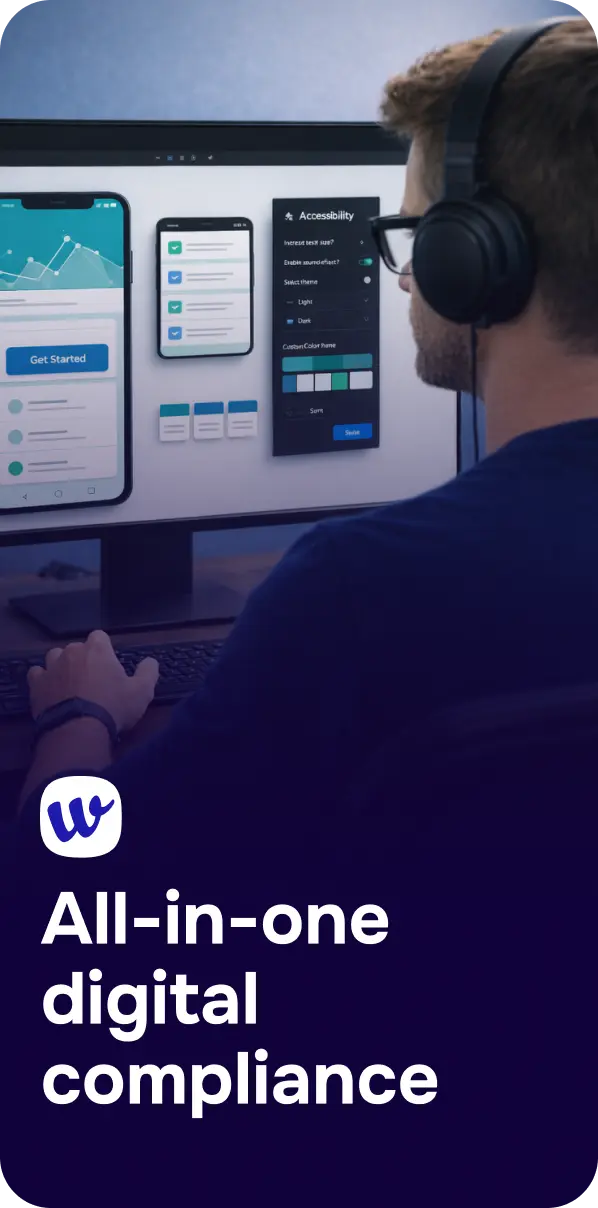
Mobile apps are no longer “nice‑to‑have” extensions of a website. They’re the primary way millions of people access services—everything from healthcare to banking. That’s exactly why accessibility has shifted from an ethical conversation to a legal and usability requirement.
Recent regulations in the U.S., for example, require organizations funded by HHS to meet WCAG 2.1 AA for both mobile apps and web content starting in 2026–2027. And globally, WCAG 2.2 continues to expand clarity on mobile‑specific scenarios—from hit target sizes to gesture alternatives—ensuring mobile interactions remain usable for everyone. [hhs.gov] [w3.org]
In other words: if your app isn’t accessible, it’s excluding users, risking lawsuits, and losing market share.
Accessibility on mobile goes far beyond adding labels or increasing font sizes. It’s about designing experiences that hold up in everyday realities—bright sunlight, small screens, noisy spaces, limited mobility, visual impairments, or users relying on assistive technologies like TalkBack or VoiceOver.
Android and iOS both publish accessibility systems that app teams are expected to follow. Google emphasizes fundamentals like proper touch size, content descriptions, readable contrast, and TalkBack navigation. Apple highlights Dynamic Type, high‑contrast text, semantic structure, and predictable navigation patterns through its Human Interface Guidelines. [developer....ndroid.com] [developer.apple.com]
At their core, these platform guidelines translate WCAG principles into daily design and development decisions.
WCAG applies to native apps just as much as websites, and its mobile mapping guidance makes that very clear. [w3.org]
Two criteria stand out because they affect nearly every tap and swipe:
WCAG 2.2 requires that interactive elements be at least 24×24 CSS pixels, or have enough spacing to avoid accidental taps. This matters because smaller controls dramatically increase error rates for users with motor challenges.
Apple and Google do not stop there—they recommend even larger targets (44–48 points/dp), ensuring comfort on mobile devices. [w3.org] [webability.io]
If users can’t read your text, they can’t use your app. WCAG requires at least 4.5:1 contrast for normal text and 3:1 for larger sizes. Many apps still fail here simply because placeholder text or disabled button states are too faint. [developer....ozilla.org]
Design accessibility is less about memorizing checklists and more about anticipating the situations and limitations real people face.
For example, if your interface is packed tightly on a small screen, even users without disabilities will struggle—let alone someone with limited dexterity. Applying the WCAG target size requirement makes the interface feel instantly more forgiving and human. [w3.org]
Users should also be able to read content effortlessly. Good contrast isn’t just for people with visual impairments; it helps anyone trying to read outdoors or in glare. WCAG’s contrast ratios give your app that baseline readability. [developer....ozilla.org]
Both Android and iOS encourage supporting user‑controlled text sizing. Android relies on scalable sp units, while iOS leans on Dynamic Type. Respecting these settings helps users with low vision, aging eyes, or simply personal preference. [developer.apple.com], [developer....ndroid.com]
And finally, accessibility labels matter. Screen readers like TalkBack or VoiceOver can only narrate what they’re given. Android’s contentDescription and iOS’s accessibility traits ensure buttons, icons, and custom elements make sense when spoken aloud. [developer....ndroid.com]
Testing accessibility means seeing your app the way different users do. Automated scanners help, but only as a first pass.
Automated tools catch around 30–40% of accessibility issues—mostly code‑level problems like missing labels or poor contrast. They’re fast and ideal for CI/CD pipelines, but they cannot judge whether an alt text is meaningful or whether a flow is navigable via a screen reader.
Manual testing with VoiceOver (iOS) and TalkBack (Android) is where real usability issues appear:
Android’s TalkBack configuration guide and Apple’s Accessibility Inspector provide deep insight into how users experience your interface. [accessibil...-guide.com], [developer.apple.com]
Emulators are excellent for early checks, but real devices are essential. Real‑world hardware exposes gesture inconsistencies, OEM differences, haptic feedback behavior, and small‑screen tap accuracy challenges that emulators simply cannot replicate.
A strong accessibility workflow blends all three layers:
Android’s flexibility is both a strength and a challenge. Manufacturers can customize UI layers, affecting how TalkBack behaves. It’s crucial to validate on at least two real Android devices representing different OEM skins.
Core Android practices include providing descriptive contentDescription values, ensuring logical focus order, and confirming that custom views expose accessible roles and states. Features like TalkBack exploration or keyboard navigation should be tested on every release to ensure predictable reading order and interaction. [stuff.mit.edu] [accessibil...-guide.com]
iOS is more uniform, but guidelines are equally strict. Apple expects developers to use Dynamic Type, respect safe areas, maintain accessible color contrast, and provide meaningful labels for every visible (and sometimes invisible) control. [developer.apple.com]
Touch targets should land around 44×44 points, a guideline Apple highlights repeatedly. Smaller elements create gesture frustration and significantly increase tap error rates. VoiceOver testing is non‑negotiable—especially for modals, tab bars, alerts, and custom components. [nadcab.com]
A modern accessibility strategy benefits from automation, but not automation alone. Solutions like Corpowid AI help teams validate both Android and iOS apps in one place, perform automated checks for WCAG violations, guide manual VoiceOver/TalkBack testing, and orchestrate both emulator and real‑device runs.
This mirrors what industry research recommends: a hybrid model where automation maintains coverage while manual testing ensures usability.
By integrating Corpowid AI into your workflow, you ensure that accessibility becomes a continuous practice rather than a one‑time fix.
Accessible mobile apps aren’t about checking boxes—they’re about designing human experiences that work for everyone.
Following WCAG 2.2, respecting platform guidelines, increasing contrast, enlarging touch targets, and testing across real devices all contribute to making apps genuinely inclusive. And with accessibility laws tightening and mobile usage growing worldwide, the best time to improve your app’s accessibility was yesterday—the next best time is now.
Small accessibility issues on product and checkout pages can create major friction for shoppers and compliance risk for businesses. Here are the e-commerce accessibility UX fixes that deserve attention first.
Choosing between an accessible HTML report and a tagged PDF affects usability, accessibility, maintenance, and compliance readiness. Here’s how to decide which format to publish and when a dual-format approach may be the better option.
Corpowid has been recognized by Gartner, a leading global research and advisory firm, for our innovation and performance in digital accessibility. These badges reflect our commitment to creating inclusive, AI-powered web experiences.









 TR
TR